BlockID React Native Integration Guide
Overview
The react-native-blockidplugin is a wrapper for the native BlockID SDKs on iOS and Android, designed to simplify API access for React Native projects. This plugin allows you to interact with the native BlockID SDKs on both iOS and Android platforms using React Native code.
The BlockID SDK is a cross-platform dependency compatible with both Android and iOS. It can be effortlessly integrated into native Android applications using Gradle as the dependency management tool, while iOS applications can incorporate it using CocoaPods.
Here are the key features of the BlockID SDK:
- One-Time Passcode: Generate a one-time passcode displayed in a mobile app, providing an additional Multi-Factor Authentication (MFA) layer.
- ID Card Verification: Scan, extract, and verify ID cards from a specified list of countries.
- Driver’s License Verification: Scan, extract, and verify driver’s licenses from a specified list of countries.
- Passport Verification: Scan, extract, and verify passports from a specified list of countries.
- Live ID Enrollment: Allow users to enroll their face for liveness detection.
- Live ID Verification: Prompt users to verify their face against a previously enrolled image for identity confirmation.
- Passwordless Login: Utilize a QR code for secure login approval via a trusted device.
- Enroll TouchID / FaceID: Leverage the native biometric of the device to unlock the application.
- License Key Management: Use a license key to manage the blockidplugin efficiently.
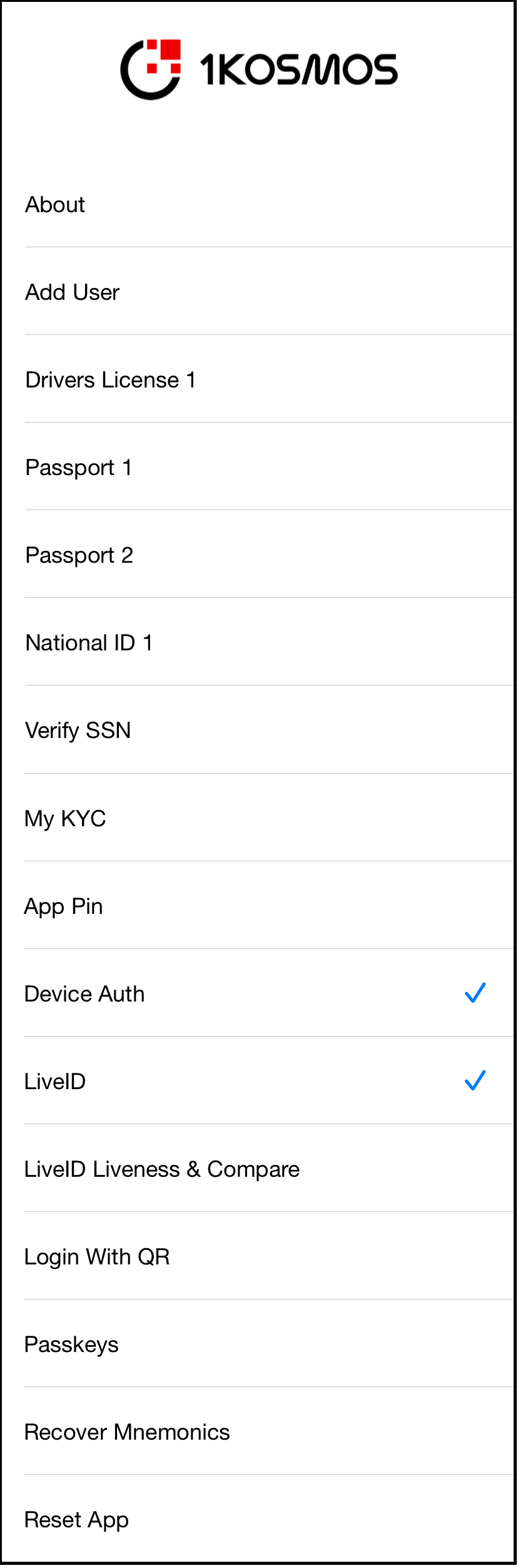
The following screenshot illustrates the features of BlockID SDK:
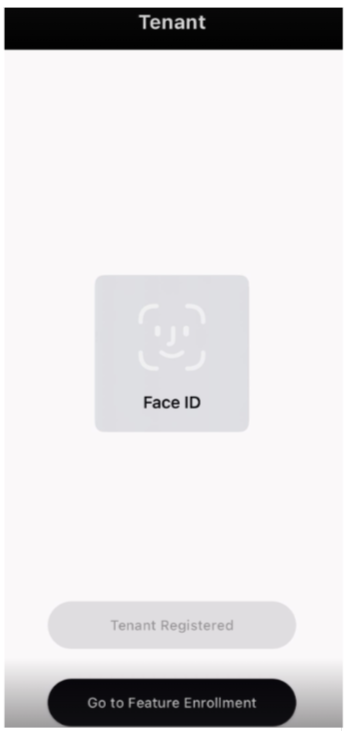
The following screenshot illustrates the features of BlockID SDK:
Starting with Release v1.10.70, the BlockID SDK has been integrated with the React Native framework through a plugin/bridge. This plugin serves as a wrapper for the native BlockID SDKs on iOS and Android, facilitating interaction with the SDKs across both platforms so that the BlockID services can be seamlessly used on Android/iOS applications built with React Native.
System Requirements
Before getting started, make sure you meet the following prerequisites:
- React Native >= 0.75.0 (plugin uses TurboModules and SPM support introduced in 0.75)
- Node.js >= v22.16.0
- Yarn package manager
- Xcode (with command-line tools configured in shell profile)
- Android Studio (with SDK paths configured in shell profile)
- Android API Level 28 / Android OS 9 or higher
- iOS 16.0 or higher
- Java 17
- Gradle 8.14.1
- Android Gradle Plugin (AGP) 8.8.0
- Kotlin 2.3.0
Installing React Native
To install react native, follow these steps:
-
Make sure you have node(v22.16.0) environment in your system. If not download Node.js from the following:
https://nodejs.org/en/download/package-manager -
Use the following command to install react native.
npm install -g react-native-cli -
Make sure that Xcode is set up in your bash/zsh profile on Mac, and Android Studio is configured in your profile on Windows.
-
As dependencies are managed via yarn, use the following command to install yarn.
npm install --global yarn
Integrating react-native-blockidplugin with React-Native Project
To integrate react native into your project, follow these steps:
-
Use one of the following commands to create your react-native project.
npx react-native init MyProject
or
npx @react-native-community/cli@latest init MyProject
-
Execute the yarn command in the root folder of the project.
yarn -
Install the react-native BlockID package as a git dependency. The plugin is distributed as an npm package on the 1Kosmos private registry.
Step 3.1 — Get the read token
The token is shared securely by the 1Kosmos mobile team. Contact your 1Kosmos representative if you don't have one.
cautionDo NOT commit this token to source control. Keep it as an environment variable or in a git-ignored .npmrc.
Step 3.2 — Set the token in your terminal
In case of macOS / Linux:
export NPM_READ_TOKEN="<paste npm-read-token here>"In case of Windows PowerShell:
$env:NPM_READ_TOKEN="<paste npm-read-token here>"`To verify it's set in macOS/Linux, run
echo "length: ${#NPM_READ_TOKEN}"To verify if it's set in Windows PowerShell,$env:NPM_READ_TOKEN.LengthBoth should print a number > 0.
Step 3.3 — Create .npmrc in your project root
Create a file called .npmrc at the root of your React Native project (next to package.json):
For macOS or Linux, run the below dependencies:
cat > .npmrc <<'EOF'@1kosmos:registry=https://artifactory.1kosmos.net/artifactory/api/npm/react-native-blockidplugin-local///artifactory.1kosmos.net/artifactory/api/npm/react-native-blockidplugin-local/:_authToken=${NPM_READ_TOKEN}//artifactory.1kosmos.net/artifactory/api/npm/react-native-blockidplugin-local/:always-auth=trueEOFFor Windows PowerShell, run the below dependencies:
@"@1kosmos:registry=https://artifactory.1kosmos.net/artifactory/api/npm/react-native-blockidplugin-local///artifactory.1kosmos.net/artifactory/api/npm/react-native-blockidplugin-local/:_authToken=${NPM_READ_TOKEN}//artifactory.1kosmos.net/artifactory/api/npm/react-native-blockidplugin-local/:always-auth=true"@ | Set-Content -Path .npmrc -Encoding utf8This routes only @1kosmos/* packages to the private registry. All other dependencies resolve from public npm.
noteAdd .npmrc to your .gitignore so the token is never committed.
Step 3.4 — Install the package
yarn add @1kosmos/react-native-blockidpluginor with npm:
npm install @1kosmos/react-native-blockidpluginStep 3.5 — Verify installation
npm list @1kosmos/react-native-blockidpluginExecuting the above must show the installed version (e.g., @1kosmos/[email protected]).
- The read token is session-only — close the terminal and it's gone. Re-export next time.
- .npmrc must be in the same directory where you run npm install / yarn add.
- Only the @1kosmos scope routes to JFrog; everything else resolves from public npm.
Managing Configurations in iOS/Android Platforms
To use Android/iOS react-native applications, you must configure specific dependencies into your React Native project's Android/iOS directories.
Configuring iOS Directory
The BlockID SDK (1.30.40+) is distributed via SPM only. The plugin's podspec uses spm_dependency (available since React Native 0.75) to resolve the SDK. This requires dynamic framework linkage in the consuming app's Podfile. Make the following changes to the Podfile in the iOS directory of your React Native project.
Check if you already have a Podfile in the iOS directory. If not, run the pod initcommand in the terminal. This command will initialize a Podfile for your project.
- Open the
Podfilein the text editor of your choice. - Make the following change to the
Podfile.
  platform :ios, '16.0'
prepare_react_native_project!

# BlockID SDK (1.30.40+) is distributed via SPM only.
# spm_dependency in the plugin podspec requires dynamic frameworks.
use_frameworks! :linkage => :dynamic

target 'YourAppName' do
  config = use_native_modules!

  use_react_native!(
    :path => config[:reactNativePath],
    :hermes_enabled => true,
    :fabric_enabled => true,
    :app_path => "#{Pod::Config.instance.installation_root}/.."
  )

  post_install do |installer|
    react_native_post_install(
      installer,
      config[:reactNativePath],
      :mac_catalyst_enabled => false,
    )

    installer.pods_project.targets.each do |target|
      target.build_configurations.each do |config|
        config.build_settings['IPHONEOS_DEPLOYMENT_TARGET'] = '16.0'
        xcconfig_path = config.base_configuration_reference.real_path
        xcconfig = File.read(xcconfig_path)
        xcconfig_mod = xcconfig.gsub(/DT_TOOLCHAIN_DIR/, "TOOLCHAIN_DIR")
        File.open(xcconfig_path, "w") { |file| file << xcconfig_mod }
      end
    end
  end
end
-
Then inside the ios folder run the following commands:
bundle install # only one time in your projectbundle exec pod install -
Info.plist Permissions
Add the following permissions to your Info.plist:
NSCameraUsageDescription`
NSFaceIDUsageDescription`
Configuring Android Directory
To configure the files inside the Android directory of your react-native project, follow these steps:
Step 1: Navigate to the build.gradle file in your react-native project and make the following changes.
  buildscript {
    ext {
        buildToolsVersion = "36.0.0"
        minSdkVersion = 28
        compileSdkVersion = 36
        targetSdkVersion = 36
        ndkVersion = "27.1.12297006"
        kotlinVersion = "2.3.0"
        agp_version = '8.8.0'
    }
    repositories {
        google()
        mavenCentral()
    }
    dependencies {
        classpath "com.android.tools.build:gradle:$agp_version"
        classpath("com.facebook.react:react-native-gradle-plugin")
        classpath("org.jetbrains.kotlin:kotlin-gradle-plugin:$kotlinVersion")
    }
}

allprojects {
    repositories {
        google()
        mavenCentral()
        gradlePluginPortal()
        maven {
            url 'https://artifactory.1kosmos.net/artifactory/maven-releases-local/'
            credentials {
                username = 'developer'
                password = 'xK9#mPw2$vLq7nBz!'

            }
        }
        maven { url "https://jitpack.io" }
    }
}

tasks.withType(JavaCompile).configureEach {
    options.release = 17
}
Step 2: Modify the gradle-wrapper.properties file
Your grade version must be 8.14.1.
distributionUrl=https\://services.gradle.org/distributions/gradle-8.14.1-bin.zip
Step 3: Modify the Gradle build configurations inside android/app folder.
- Specify the
minSdkVersionproperty as 28 (set via rootProject.ext.minSdkVersion from root build.gradle). - Add the following packaging options inside the Android section.
     android {
  packaging {
      resources {
          excludes += [
              'META-INF/rxjava.properties',
              'META-INF/INDEX.LIST',
              'META-INF/LICENSE',
              'META-INF/LICENSE.txt',
              'META-INF/LICENSE.md',
              'META-INF/NOTICE',
              'META-INF/NOTICE.txt',
              'META-INF/NOTICE.md',
              'META-INF/DEPENDENCIES',
              'META-INF/FastDoubleParser-LICENSE',
              'META-INF/DISCLAIMER',
              'META-INF/versions/9/OSGI-INF/MANIFEST.MF',
              'META-INF/io.netty.versions.properties',
              'lib/x86_64/darwin/libscrypt.dylib',
              'lib/x86_64/freebsd/libscrypt.so',
              'lib/x86_64/linux/libscrypt.so',
              'AndroidManifest.xml'
          ]
          pickFirsts += [
              'META-INF/FastDoubleParser-NOTICE',
              'META-INF/bigint-NOTICE'
          ]
      }
  }
}
- Add the following configurations to the root level of the build.gradle file.
     configurations.configureEach {
 resolutionStrategy.eachDependency { DependencyResolveDetails details ->
     if (details.requested.group == 'org.bouncycastle') {
         details.useVersion '1.84'
     }
  }
 }
Step 4: Navigate to AndroidManifest.xml file under android/app/src/main add tools:replace="android:allowBackup,android:label,android:theme" as shown below.
<manifest xmlns:android="http://schemas.android.com/apk/res/android"
    xmlns:tools="http://schemas.android.com/tools">
    <uses-permission android:name="android.permission.INTERNET"/>
    <uses-permission android:name="android.permission.CAMERA"/>
    <application
        android:label="appname"
        android:icon="@mipmap/ic_launcher"
        android:theme="@style/AppTheme"
        android:allowBackup="true"
        tools:replace="android:allowBackup,android:theme,android:label"/>
</manifest>
Importing react-native blockID plugin to your Project
Run the following command to import the react-native-blockidplugin into your React-Native project.
import { setLicenseKey } from '@1kosmos/react-native-blockidplugin';
Sample
setLicenseKey('YOUR_LICENSE_KEY').then((result) => {
      console.log('Success: ', result);
    });
Managing Functionalities in the Sample Project
After creating the sample project, the following BlockID app functionalities can be explored in the React Native Android/iOS applications:
- SDK Setup functions
- Get DID
- Get Version
- Biometric Enrollment
- Create a one-time passcode
- LiveID Enrollment
- LiveID Verification
- Document Enrollment
- Login with a QR Code
- Locking and Unlocking SDK
- Resetting SDK
SDK Setup functions
You can set up an SDK to manage the license key, wallet, and tenant. The following table provides information on various SDK functions:
| Function | Description | Container |
|---|---|---|
| Set License Key | Set the license key to set up the SDK | let result = await setLicenseKey(const_licenseKey); |
| Initialize Wallet | Create a wallet for the application | let result = await initiateTempWallet(); |
| Register Tenant | Register the tenant with the SDK | let result = await registerTenant( <br /> const_tag, <br /> const_community, <br /> const_dns, <br /> ); |
Get DID
To retrieve the unique Distributed IDentifier (DID), run the following command. Its response is displayed as a String.
let result = await getDID();
Get Version
To retrieve the version of the currently used BlockID SDK, run the following command.
let result = await blockIDSDKVersion();
Biometric Details
Use this functionality to scan your biometric data to unlock the BlockID SDK and gain access to its functionality.
To enroll a biometric, run the following command:
let result = await enrollDeviceAuth();
To verify if any biometric data has already been enrolled, run the following command:
let result = await verifyDeviceAuth();
To check if the biometric has been registered, run the following command:
let result = await isDeviceAuthRegistered();
The result will be a boolean value indicating whether biometric data is registered or not.
One-time passcode
Obtain the time-based OTP from the blockidplugin by running the following command:
let result = await totp();
Its response will be of the type TOTP and provide the following objects:
| Parameter | Description |
|---|---|
| totp | String: Displays a time-based one-time password (OTP). |
| getRemainingSecs | Int: Displays the time after which the OTP expires. The default expiry time of the OTP is 30 seconds. |
LiveID Enrollment
You can perform the following functions during the enrollment of liveID:
a. Enroll LiveID – Use the following command to enroll the liveid.
await enrollLiveIDScanning(
  const_dvcID,              // dvcID string
  random_UUID,              // mobileSessionID (optional, pass null to omit)
  "liveid_" + random_UUID   // mobileDocumentID (optional, pass null to omit)
);
Method Summary
| Parameter | Description |
|---|---|
| dvcID | (Optional) String: DvcID |
| mobileSessionId | (Optional)String: random ID |
| mobileDocumentId | (Optional) String: random ID |
b. Verify Enrolled LiveID – Use the following command to verify the enrolled liveID.
await verifyLiveIDScanning(
  const_dvcID,              // dvcID string
  random_UUID,              // mobileSessionID (optional, pass null to omit)
  "liveid_" + random_UUID   // mobileDocumentID (optional, pass null to omit)
);
Method Summary
| Parameter | Description |
|---|---|
| dvcID | (Optional) String: DvcID |
| mobileSessionId | (Optional) String: random ID |
| mobileDocumentId | (Optional) String: random ID |
c. Verify Face with Liveness - Use the following command to perform the face liveness check.
await verifyFaceWithLiveness(
  const_dvcID,              // dvcID string
  random_UUID,              // mobileSessionID (optional, pass null to omit)
  "liveid_" + random_UUID   // mobileDocumentID (optional, pass null to omit)
);
| Parameter | Description |
|---|---|
| dvcID | (Optional) String: DvcID |
| mobileSessionId | (Optional) String: random ID |
| mobileDocumentId | (Optional) String: random ID |
d. Check if LiveID is registered – Use the following sample command to check if the liveID has been registered.
let result = await isLiveIDRegisterd();
The status will be a boolean value indicating whether the LiveID is registered.
e. Stop LiveID Scanning – Use the following sample command to stop the liveID scanning process.
await stopLiveIDScanning();
The status will be a boolean value indicating whether scanning has been stopped.
f. LiveID Scanning responses – Displays the responses of the liveID scanning.
| LiveID Status | Description |
|---|---|
| FocusOnFaceChanged | When the user’s face focus changes within the scanner focus area. |
| faceLivenessCheckStarted | When the LiveID scanner started the liveness check. |
| completed | When the LiveID Scanning is completed. |
| failed | When the LiveID Scanning fails. This will give the error object as follows: Error: ErrorResponse which will have the code. Error Code Description: Error Description. |
Document Enrollment
You can use this functionality to enroll different types of documents such as Driver’s Licenses, Passports, and National IDs.
a. Scanning document – Use the following command to scan the document.
let documentStr = await scanDocument(type);
The documentStr will provide a JSON string containing document information. type is a number corresponding to:
- 0 — National ID
- 1 — Driver License
- 2 — Passport
b. Registering Document – Use the following sample command to register the document.
// Register Drivers License with LiveID
let response = await registerDrivingLicenceWithLiveID(
  Object.fromEntries(idCardEntries),
  face,
  proofedBy,
  randomUUID,
  "dl_with_liveid_" + randomUUID
);

// Register Passport with LiveID
let response = await registerPassportWithLiveID(
  Object.fromEntries(idCardEntries),
  face,
  proofedBy,
  randomUUID,
  "ppt_with_liveid_" + randomUUID
);

// Register National ID with LiveID
let response = await registerNationalIDWithLiveID(
  Object.fromEntries(idCardEntries),
  face,
  proofedBy,
  randomUUID,
  "nationalid_with_liveid_" + randomUUID
);
Method Summary
| Parameter | Description |
|---|---|
| data | data object received after scanning the document |
| face | string: face object in the string format |
| proofedBy | string: This identifies the entity responsible for proofing the document. When you use BlockID SDK Scanners, this defaults to “blockid”. |
| mobileSessionId | (Optional) String: random ID |
| mobileDocumentId | (Optional) String: random ID |
QR Scanning
The following functions help with QR scanning.
a. Start Scan - To start the scanning process, use the following command:
let qrDataString = await startQRScanning();
Method Summary
| Parameter | Description |
|---|---|
| return | qrDataString: Scanned data as String |
b. Stop Scan - To stop the scanning process, use the following command:
await stopQRScanning();
Method Summary
| Parameter | Description |
|---|---|
| return | Boolean: It will return true if the scanning process is stopped. |
Locking and Unlocking SDK
The lock and unlock functionality in the SDK provides control over feature access, ensuring that SDK capabilities are only accessible when explicitly unlocked.
By default, the BlockID SDK is locked. To access its functionalities, you must first unlock the SDK. You can unlock it using one of the following methods:
To lock the SDK, run the following command:
await lockSDK();
To unlock the SDK, run the following command:
await unLockSDK();
Resetting SDK
Use this function to purge the SDK wallet and remove all data stored or owned by the SDK.
To reset the SDK, run the following sample command:
await resetSDK(
      AppConstants.tag,
      AppConstants.community,
      AppConstants.dns,
      AppConstants.licenseKey,
      'Resetting'
    );